> For the complete documentation index, see [llms.txt](https://docs.payments.thalescloud.io/llms.txt). Markdown versions of documentation pages are available by appending `.md` to page URLs; this page is available as [Markdown](https://docs.payments.thalescloud.io/perso-design-services/implement-allaboutme-and-sketchmycard-b2c/integrate-designer-tool/implementation-for-issuer-built-designer-tools.md).
# Implementation for Issuer Built Designer Tools
## What is the Image Upload API?
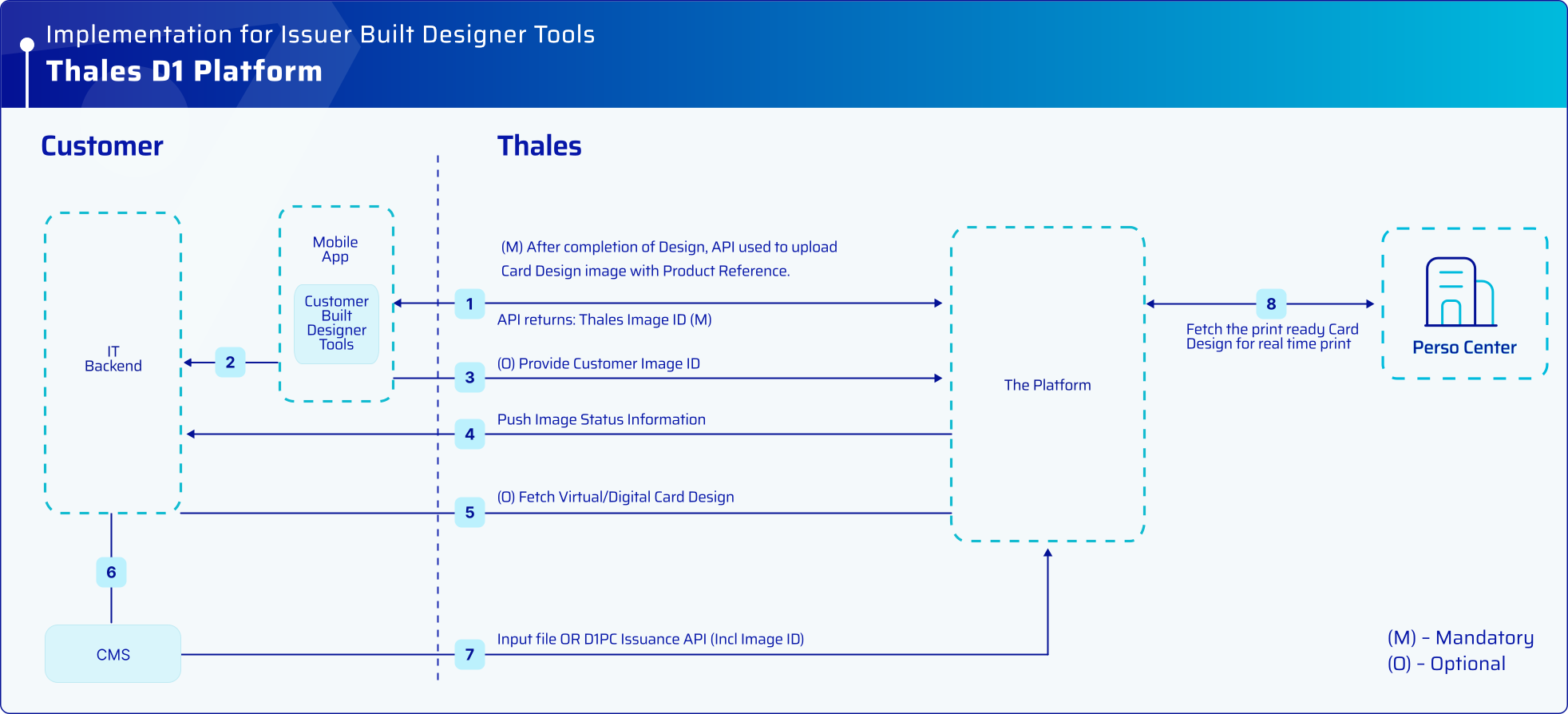
For issuers that wish to develop their own card design solution rather than using the Thales Designer Tool, we offer the **Image Upload API** for delivering compliant images into the Perso Design Services Platform.
### Flow Diagram
## Integrate Image Upload API
The primary methods for an issuer to upload an image to the Perso Design Services platform are the **SendImage method** or the **SendImageWithDataCapture method.**
### SendImage Method
The **SendImage method** is the means for the issuer to upload images from local system directly into the Platform.
#### URLs
URLs for the web service will be provided by your Thales contact during onboarding.
#### Request Parameters
* `Image` (byte\[]): The image in RGB JPEG or PNG format. It should contain the full edge-to-edge image, which the user wants to upload from a local system.
* `handoverKey` (string): This value identifies the caller and is matched to a specific product that is setup within the Platform. Thales will provide the Aggregator with the value for this parameter. Also note that a different value will be used on each environment.
> **Note:** separate handoverKeys as provided by Thales should be used for images that do not require Image Checking (Gallery Images) and images that require Image Checking.
#### Response Parameters
* `CardImageID` (string): The unique identifier for the image being created which is generated by the Platform.
* `ClientID` (integer): Internal Platform identifier.
* `ErrorCode` (integer): An error code describing the error (if any) that occurred during the method call.
* `handoverKey` (string): This value identifies the caller and is matched to a specific product that is setup within the Platform. Thales will provide the issuer with the value for this parameter. Also note that a different value will be used on each environment.
#### Error Codes
* `-1` (Unexpected system error): An internal error occurred. The caller should attempt to call the method again. If a high number of such errors are encountered, the problem should be escalated to manual operators at Thales.
* `-2` (Authentication error): (Unexpected system error): An internal error occurred during Authentication will be sent back.
* `0` (Success): The method call was successful and image delivery is marked as completed.
* `1` (ImageDataIsInvalid): This error comes when the image is not valid as per image validations.
* `2` (HandoverKeyInvalid): The handoverKey is not valid.
## Setting Custom Parameters for an Image Submitted via Image Upload API
Where an issuer is using the **Image Upload API** to submit the end user's card design, they may wish to capture custom data against the uploaded image, for example an **issuer generated Image ID**. This can be achieved using the **SetCustomDataCapture method**.
### SetCustomDataCapture Method
The **SetCustomDataCapture method** can be used by the issuer to add or update custom parameters for an image submission. The issuer should wait until the card design submitted via the Image Upload API is accepted before adding/updating specific information.
#### URLs
URLs for the web service will be provided by your Thales contact during onboarding.
#### Request Parameters
* `CardImageID` (string): The unique identifier for the image being requested. This is generated by the Perso Design Services platform.
* `ImageInformation_Key` (GUID string): This value identifies the caller and is matched to the issuer. This guarantees that the caller should have access to the requested CardImageID. Thales will provide the issuerwith the value for this parameter. Also note that a different value will be used on each environment.
* `DataCapture` (string): This value is based on query string parameters much like a URL in a browser. KeyValue pairs (“Key=Value\&Key=Value&…”) are required to identify what particular DataCapture needs to be updated.
#### Response Parameters
* `SetCustomDataCaptureResult` (int): The same value as the request parameter.
#### Error Codes
* `-1` (Error): an internal error occurred (contact support)
* `0` (Success): update successful
* `1` (CardImageIdInvalid): not a valid identifier
* `2` (ImageInformationKeyInvalid): ImageInformation\_Key does not match CardImageId submitted
* `3` (DataCaptureFieldsDoNotMatch): DataCapture Keys do not match internally
* `4` (CardImageIdDidNotReturnClient): failed to look up CardImageId
* `5` (DataCaptureFieldsNotSetForUpdate): the DataCapture field is disabled for update
* `6` (DataCaptureNotInformed): Field was empty
---
# Agent Instructions
This documentation is published with GitBook. GitBook is the documentation platform designed so that both humans and AI agents can read, navigate, and reason over technical content effectively. Learn more at gitbook.com.
## Querying This Documentation
If you need additional information that is not directly available in this page, you can query the documentation dynamically by asking a question.
Perform an HTTP GET request on the current page URL with the `ask` query parameter, and the optional `goal` query parameter:
```
GET https://docs.payments.thalescloud.io/perso-design-services/implement-allaboutme-and-sketchmycard-b2c/integrate-designer-tool/implementation-for-issuer-built-designer-tools.md?ask=&goal=
```
`ask` is the immediate question: it should be specific, self-contained, and written in natural language.
`goal` is optional and describes the broader end goal you are ultimately trying to accomplish on behalf of the user. GitBook uses it to tailor the answer towards what is most useful for that goal.
The response will contain a direct answer to the question and relevant excerpts and sources from the documentation.
Use this mechanism when the answer is not explicitly present in the current page, you need clarification or additional context, or you want to retrieve related documentation sections.