> For the complete documentation index, see [llms.txt](https://docs.payments.thalescloud.io/llms.txt). Markdown versions of documentation pages are available by appending `.md` to page URLs; this page is available as [Markdown](https://docs.payments.thalescloud.io/payment-passkeys-issuers/implement-payment-passkeys/list-payment-passkeys.md).
# List payment passkeys
### Overview
Use this flow to retrieve payment passkeys linked to a card. The issuer application displays the results in its native user interface.
{% hint style="info" %}
This flow is available only for Visa.
{% endhint %}
### User experience
Visa user experience for listing payment passkeys.
Visa requires a brief initialization step on an issuer-hosted web page.
This step checks the device configuration.
The issuer application then displays them in its native user interface.
{% hint style="info" %}
UI screens are for information purposes only; actual appearance may vary depending on device, OS, and configuration.
{% endhint %}
### Flow
Visa initialization flow for payment passkey listing.
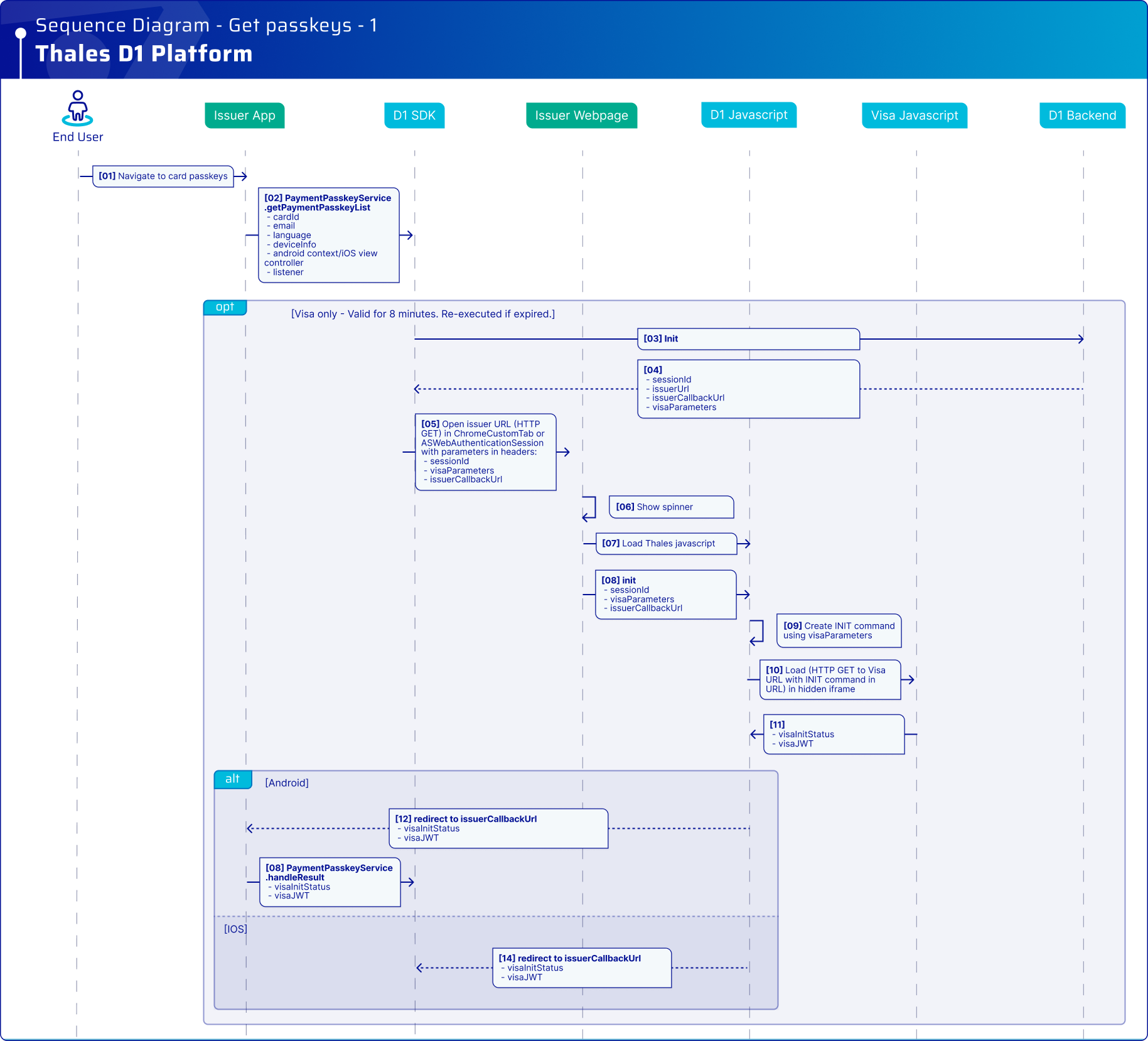
The D1 SDK redirects the end user to an issuer-hosted web page. This can be a loading page.
The page loads the D1 JavaScript SDK.
The D1 JavaScript SDK starts the Visa SDK in a hidden iframe.
If the device completed this step within eight minutes, the D1 SDK skips the web page automatically.
### Sequence diagram
#### Prerequisites
* The issuer application integrates and initializes the D1 SDK.
* The issuer application is authenticated with the D1 SDK.
* The end user and card are registered in the D1 Platform.
* The issuer exposes the issuer-hosted web page at an URL configured in the D1 backend.
After this sequence, Visa initialization completes. The D1 SDK and D1 backend retrieve the card's payment passkeys. They also identify the payment passkey linked to the current device.
The D1 SDK returns the payment passkey list to the issuer application. The issuer application displays the list in its native iOS or Android user interface.
### Integrate the D1 JavaScript SDK
Create an issuer-hosted web page that loads the D1 JavaScript SDK.
The D1 JavaScript SDK creates a hidden iframe that runs the Visa JavaScript SDK. Visa uses the device fingerprint before it retrieves payment passkeys or creates a payment passkey.
The D1 SDK opens this page when needed. It uses a `ChromeCustomTab` on Android and `SFSafariViewController` or `ASWebAuthenticationSession` on iOS. Initialization takes up to two seconds.
Display a waiting state while initialization runs. A spinner is sufficient.
#### Receive initialization parameters
The D1 SDK opens the issuer-hosted web page with query parameters.
Read these parameters from the page URL:
```html
https://
?issuerCallbackUrl=
&apn=&softwareId=
&softwareVersion=
&productCode=
```
| Parameter | D1 JavaScript SDK option | Required |
| ------------------- | -------------------------------- | -------- |
| `issuerCallbackUrl` | `issuerCallbackUrl` | Yes |
| `apn` | `visaParameters.apn` | Yes |
| `softwareId` | `visaParameters.softwareId` | Yes |
| `softwareVersion` | `visaParameters.softwareVersion` | Yes |
| `productCode` | `visaParameters.productCode` | Yes |
All values are strings and URL-encoded. Pass them unchanged to `init()`.
#### Initialize the D1 JavaScript SDK
On the issuer-hosted web page:
1. Display a waiting state until the flow completes or redirects.
2. Read the query parameters added by the D1 SDK.
3. Load the D1 JavaScript SDK with its Subresource Integrity (SRI) hash.
4. Set `crossorigin="anonymous"` on the script.
5. Call `init()` with the callback URL and Visa parameters.
The following example loads and initializes the D1 JavaScript SDK:
{% code lineNumbers="true" expandable="true" %}
```html
Setting up your payment passkey
```
{% endcode %}
#### Security requirements
* Set `integrity` to the SRI hash provided by Thales. The browser blocks a modified script.
* Set `crossorigin="anonymous"`. Cross-origin SRI requires a CORS-enabled response.
* Check that `window.init` is available. Display an error if the script fails to load.
* Serve the page over HTTPS. Do not embed it in an iframe.
* Register the page origin with Visa during D1 onboarding. Visa receives it as `top_origin` and `integrator_origin`.
#### Handle the callback
When initialization finishes, the D1 JavaScript SDK redirects to `issuerCallbackUrl`. Configure this URL during D1 onboarding.
The D1 SDK handles the callback automatically on iOS. On Android, redirect the callback to the D1 SDK as shown below.
### Integrate the D1 SDK
Follow these platform requirements:
* Integrate the D1 SDK as mentioned in this [section](/payment-passkeys-issuers/integrate-d1-sdk.md).
* **Android:** Call `handleResult()` directly on the main thread from `onNewIntent()`. Do not use background threads or dispatchers. They can trigger lifecycle callbacks before processing completes.
{% tabs %}
{% tab title="Android Kotlin" %}
{% code lineNumbers="true" expandable="true" %}
```kotlin
class PaymentPasskeyActivity : AppCompatActivity() {
private lateinit var d1Task: D1Task
override fun onCreate(savedInstanceState: Bundle?) {
super.onCreate(savedInstanceState)
setContentView(R.layout.activity_main)
d1Task = D1Task.Builder()
/* Configure D1 Task */
.build()
val cardID = "your-card-id-here"
val language = "en-US"
lifecycleScope.launch(Dispatchers.Main) {
try {
val paymentPasskeyList = withContext(Dispatchers.IO) {
d1Task.paymentPasskeyService.getPaymentPasskeyList(
cardID,
language,
this@PaymentPasskeyActivity
).await()
}
// Handle the payment passkeys associated with this card.
for (paymentPasskey in paymentPasskeyList) {
val paymentPasskeyCardID = paymentPasskey.cardID
val paymentPasskeyID = paymentPasskey.paymentPasskeyID
val creationTime = paymentPasskey.creationTime
val state = paymentPasskey.state
val deviceName = paymentPasskey.deviceName
val deviceNickname = paymentPasskey.deviceNickname
val isOnCurrentDevice = paymentPasskey.isOnCurrentDevice
}
} catch (exception: D1Exception) {
// Refer to D1 SDK Integration – Error Management section
}
}
}
override fun onNewIntent(intent: Intent) {
super.onNewIntent(intent)
val appLink = "" // Refer to AndroidManifest.xml setup
val customScheme = "myapp://passkey" // Refer to AndroidManifest.xml setup
if (intent.data != null && (intent.toUri(Intent.URI_INTENT_SCHEME).contains(appLink) ||
intent.toUri(Intent.URI_INTENT_SCHEME).contains(customScheme))
) {
lifecycleScope.launch(Dispatchers.Main) {
d1Task.paymentPasskeyService.handleResult(intent)
}
}
}
}
```
{% endcode %}
{% endtab %}
{% tab title="iOS" %}
{% code lineNumbers="true" expandable="true" %}
```swift
// BEGIN
let cardID = ""
let window = UIWindow() // use app window
let language = "en-US" // ISO 639-1 + ISO 3166-1 alpha-2 format
do {
let service = try d1Task.paymentPasskeyService()
let passkeys = try await service.paymentPasskeyList(cardID, language: language, window: window)
// Process the passkey list
for passkey in passkeys {
print("Card ID: \(passkey.cardID)")
print("Passkey ID: \(passkey.paymentPasskeyID)")
// Visa-specific fields
if let state = passkey.state {
print("State: \(state)")
}
if let deviceName = passkey.deviceName {
print("Device Name: \(deviceName)")
}
if let deviceNickname = passkey.deviceNickname {
print("Device Nickname: \(deviceNickname)")
}
if let isOnCurrentDevice = passkey.isOnCurrentDevice {
print("On Current Device: \(isOnCurrentDevice)")
}
if let creationTime = passkey.creationTime {
print("Creation Time: \(creationTime)")
}
}
} catch {
// Refer to D1 SDK Integration – Error Management section
}
// END
```
{% endcode %}
{% endtab %}
{% endtabs %}
---
# Agent Instructions
This documentation is published with GitBook. GitBook is the documentation platform designed so that both humans and AI agents can read, navigate, and reason over technical content effectively. Learn more at gitbook.com.
## Querying This Documentation
If you need additional information that is not directly available in this page, you can query the documentation by asking a question.
Perform an HTTP GET request on the following URL with the `ask` and `goal` query parameters:
```
GET https://docs.payments.thalescloud.io/payment-passkeys-issuers/implement-payment-passkeys/list-payment-passkeys.md?ask=&goal=
```
`ask` is the immediate question: it should be specific, self-contained, and written in natural language.
`goal` is what the user is ultimately trying to achieve, the reason they need the answer. Sharing it helps GitBook give you a better, more relevant answer. A goal is most helpful when it describes the outcome the user wants rather than restating the question. For example, with `ask=how do I create an API token`, a goal like `automate deployments from our CI pipeline` lets GitBook tailor the answer to that use case.
The response will contain a direct answer to the question and relevant excerpts and sources from the documentation.
Use this mechanism when the answer is not explicitly present in the current page, you need clarification or additional context, or you want to retrieve related documentation sections.
.svg?alt=media&token=41d36d43-2ac1-4d7f-8d4f-b6808ef7fb3d)

.png?alt=media)